
Patient education topics contribute to case presentations by providing images and movies that further explain and demonstrate the work required for certain treatment procedures.
To create a patient education topic
1. In the Dentrix Presenter, click the Patient Education tab.
The Patient Education panel appears.
Tip: To keep the panel expanded, click the push pin button.
2. In the toolbar, click the New Topic button.
The Patient Education Topic Setup dialog box appears.
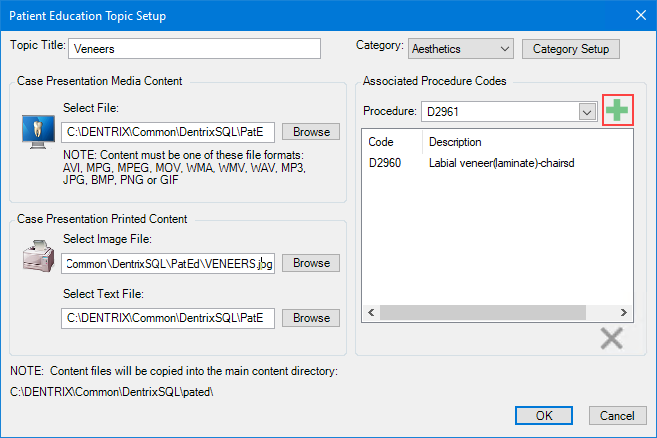
3. Type the title (up to 80 characters) that you want to use for the topic in the Topic Title field.
4. In the Category list, do one of the following:
Select the category that you want to place the topic in.
Set up a new category:
Click the Category Setup button.
The Category Setup dialog box appears.
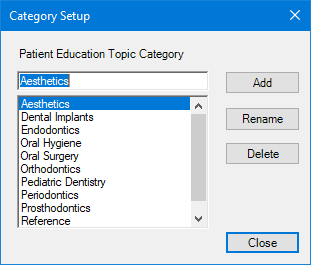
Enter the category title of up to 50 characters in the text field, and then click Add.
Note: You cannot use Uncategorized as a new category name, since it is already in the Patient Education tab.
Click Close.
The new category appears in the Category list.
5. Under Case Presentation Media Content, click Browse and select the media file that you want to use for the topic. The media file can be one of the following file formats:
Video files - AVI, MPG, MPEG, MOV, or WMV.
Audio files - WMA, WAV, MP3, or MIDI.
Picture files - JPG, BMP, PNG, or GIF.
6. To add other content that prints when the topic is printed, under Case Presentation Printed Content, click Browse under Select Image File and/or Select Text File and browse to the desired content.
7. Do one of the following, and then click the Add icon.
Select the procedure code or codes associated with the planned treatment from the Procedure list.
Type the procedure code or codes.
When procedures are treatment-planned in the patient’s chart, Dentrix automatically adds the patient education topics associated with those procedure codes to the case presentation for the patient.
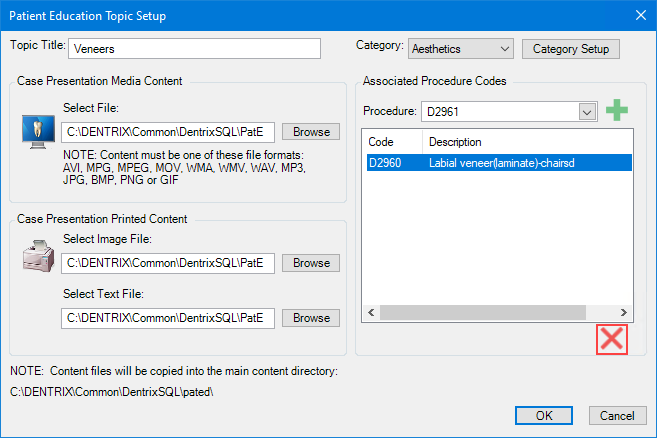
8. To remove a procedure code association for this patient education topic, select the appropriate procedure code from the list, and then click the Remove icon.
9. Click OK to save your changes and return to the Presenter.